

Reference
Every part of the window
What each element does, and why it is there. Hover any field in the editor for the same explanation as a tooltip.
Toolbar
Open the window from Window > Kionjo, or double click a Storyboard asset.
- Storyboard field: the storyboard this window edits. The window reopens the last one you used.
- New: creates a Storyboard asset where you choose and opens it.
- Storyboard, Shoot, Cut: the three tabs. One per stage of the work: plan, record, assemble.
- Preferences: opens Preferences > Kionjo (ffmpeg path, encoder, Python).
- Help: a menu with Getting started guide (opens the guide), Docs for this tab (opens this page at the tab you are on), Troubleshooting and Guided tour (runs the first run tour again).
Storyboard tab
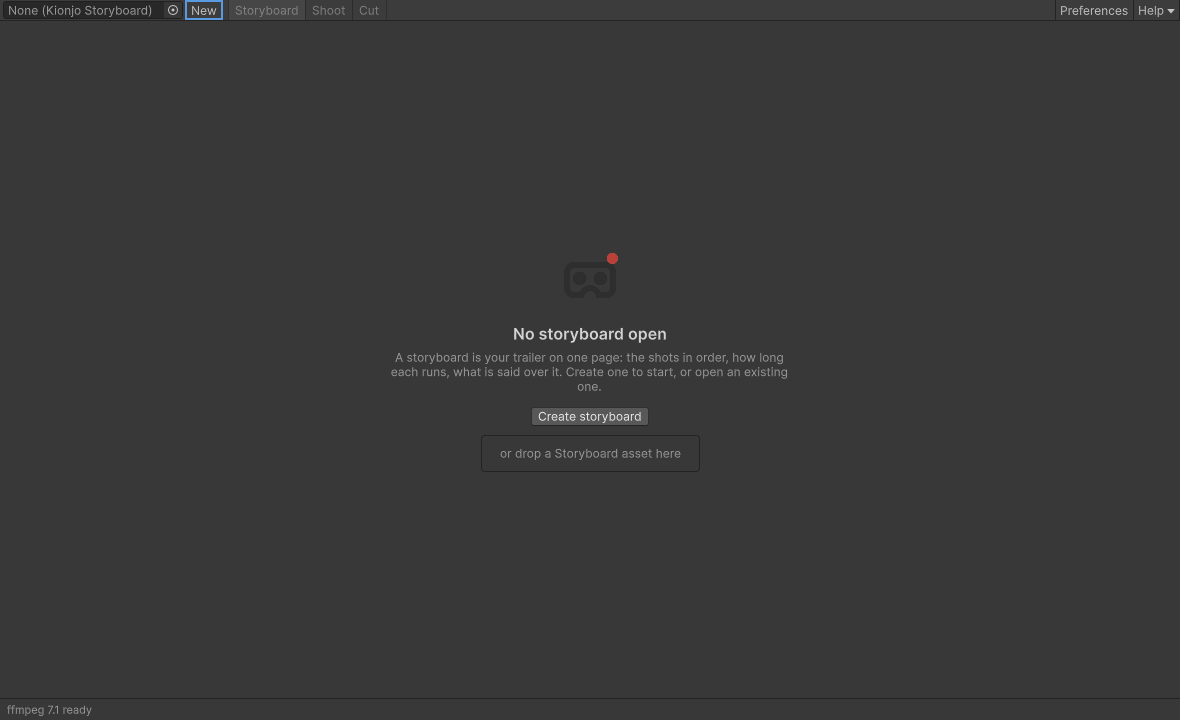
Plan the trailer: the order of the shots, how long each runs, what is said over it. Left, the shot list. Right, the inspector for the selected shot. Bottom, the timeline bar.
Shot list
Each card shows the shot's picture, code and name, tags for type, location and beat, its planned length and a state chip. Hover a card to read its notes. Drag cards to reorder them.
| State chip | Meaning |
|---|---|
| no takes, 1 take, 3 takes | A Performance shot and how many takes are on disk. Not ready for the cut yet. |
| rendered | A render exists for the selected take at the storyboard's render preset. Ready. |
| not rendered | A Live Camera shot without a render yet. |
| still ready, no still | A Still shot, with or without its picture. |
| capture ready, no capture | A Device Capture shot, with or without its video file. |
| organise only | Kept organised on disk, left out of the cut. |
| black card, text card, image card | A card. Cards are drawn by the cut, so they are always ready. |
List buttons
- Add shot: adds a Performance shot after the selected one, with the next free code (S01, S02...). It takes its picture from the Scene view camera, so frame the place first.
- Add card: adds a card (C01, C02...), 3 s long by default.
- Duplicate (Ctrl+D): copies the selected shot right after it, with a new id and its code followed by "b". Takes and picture are not copied.
- Remove (Delete): removes the selected shot. Its takes on disk are kept.
- Storyboard settings: shows the settings for the whole trailer in the inspector.
- Ctrl+Up and Ctrl+Down move the selected shot. Every list change can be undone. Shortcuts can be changed in Edit > Shortcuts under Kionjo.
Timeline bar
One segment per shot, as wide as its planned length, with the running total against the target, for example "64.0 s / target 80 s". The total turns to a warning when you go over. Click a segment to select its shot.
Storyboard settings
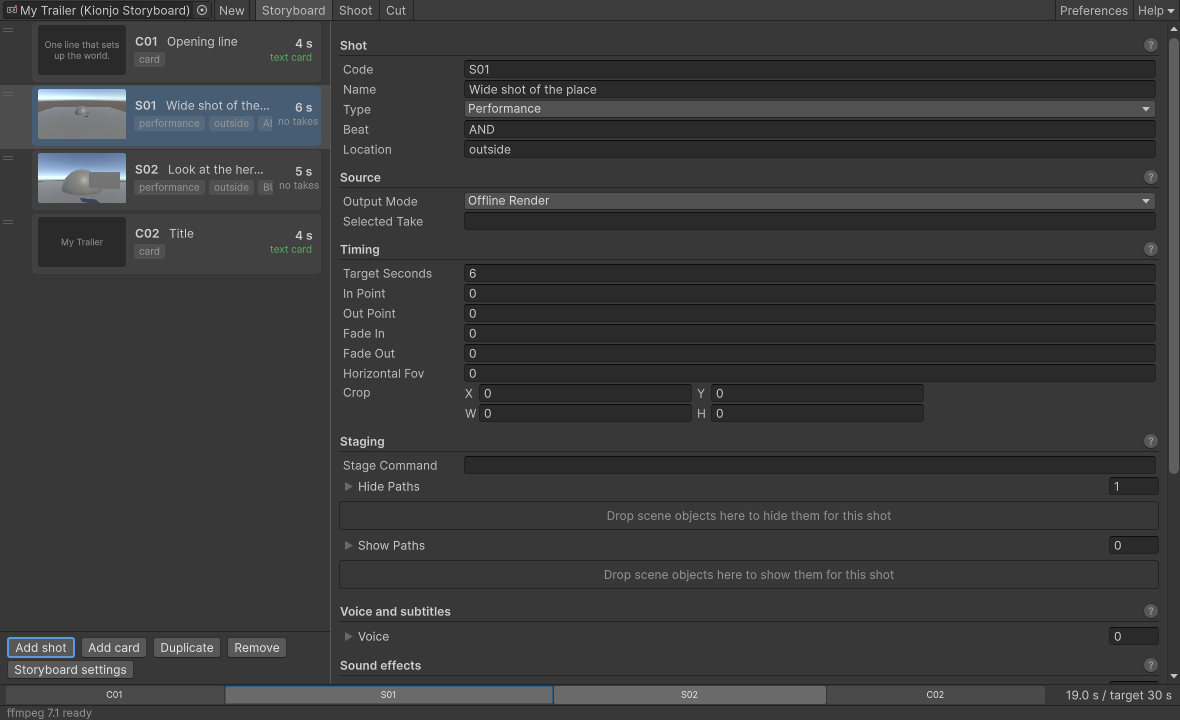
Settings for the whole trailer. Click Storyboard settings under the shot list to show them in the inspector; click a shot to go back to it.
| Setting | Default | What it does |
|---|---|---|
| Title | the file name you chose | Used in output file names, for example Baraza_Trailer_draft03.mp4. |
| Output Folder | Kionjo | Where takes, renders and cuts go. Relative to the project folder (outside Assets), or absolute. Add it to .gitignore. |
| Target Seconds | 60 | Target running time. The timeline bar warns past it. |
| Render Preset | Preview720p30 | Size, frame rate and quality of renders. See the presets. |
| Cut Preset | Preview720p30 | Size, frame rate and quality of drafts and animatics. |
| Subtitles | Arial, size 15, &H00EDEDED, outline 0, margin 12 | Font Path and Font Name (the family name inside that file; empty Font Path uses Arial), Title Font Path for text cards, Size, Colour (ASS &HAABBGGRR), Outline, Margin V. |
| Music | empty | Music cues. See music. |
| Music Crossfade Seconds | 2 | Crossfade between consecutive cues. 0 joins them without one. |
| Ducking | on, 0.05, 3, 40 ms, 700 ms | Pushes the music down under the voice: Enabled, Threshold, Ratio, Attack, Release. |
| Loudness | -14, -1.5, 11 | Integrated loudness in LUFS, true peak, range. |
| Render Quality | off | Applied only while rendering: quality level name, LOD bias (0 keeps), texture mip limit (-1 keeps), force anisotropic, unlimited skin weights. |
Shot inspector
Shot
The fields of the selected shot, grouped by what they do. Every edit can be undone. The small "?" next to each section heading opens that section on this page.
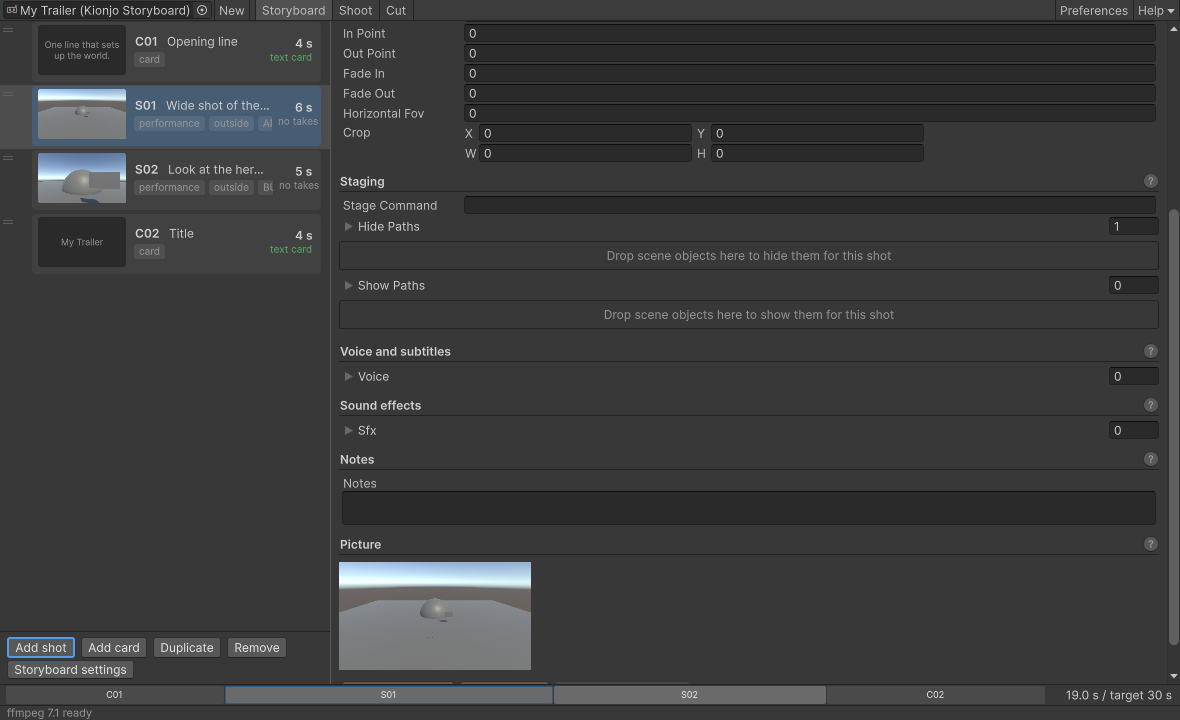
- Code: short label used in folder names, for example S07.
- Name: what the shot shows, for example "Crane down on the dome".
- Type:
- Performance: performed by a person (headset or camera), recorded, replayed and rendered.
- Live Camera: a camera that already moves on its own (Cinemachine, animation), rendered frame locked for its target length.
- Still: a single frame, the shot's picture, held for its target length.
- Card: black, a text card or an image card (opening line, closing lines, cover).
- Beat: the story beat this shot carries (AND, BUT, THEREFORE, or free text). Shown as a tag.
- Location: where it happens (outside, inside, question 5). Shown as a tag.
Shot inspector
Card
Shown instead of Source, Timing and Staging when the type is Card. Cards are drawn by the cut, so they have no picture and no render.
- Card Kind: Black, Text or Image.
- Target Seconds: how long the card stays on screen.
- Card Lines (Text): the lines, shown one after another.
- Card Image Path (Image): the picture to show, for example the store cover (PNG or JPG).
- Card Push In (Image): a slow push in, as the end scale. 1.04 by default, 1 = none.
- Fade In, Fade Out: fade from and to black, in seconds.
Shot inspector
Source
- Output Mode:
- Offline Render: replay the take in the editor and render it at the render preset.
- Device Capture: use the headset's own video and only trim it. See headset capture.
- Organise Only: keep files organised per shot. The shot is left out of the cut.
- Device Capture Path and Import capture (Device Capture): the video file, and a button that copies a video into the shot's captures folder and uses it.
- Selected Take (Performance with Offline Render): the take folder to use, for example
S10_take03. Empty uses the newest take. The Use button in the Shoot tab fills it in.
Shot inspector
Timing
- Target Seconds: planned length, 4 s by default. Used by the animatic, cards, stills and live camera shots.
- In Point: seconds into the render or device capture where the shot starts in the cut.
- Out Point: where it ends. 0 = the end. When an in and out range is set, it is the shot's planned length.
- Fade In, Fade Out: fade from and to black, in seconds.
- Horizontal Fov: horizontal field of view for the render. 0 keeps the camera's own lens.
- Crop: normalised crop (x, y, width, height). All zero = no crop.
Shot inspector
Staging
How the scene must look for this shot. Applied by Stage in the Shoot tab and before every render.
- Stage Command: text passed to every
IKionjoStageHandlerin the scene when the shot is staged. - Hide Paths: scene objects deactivated for the shot, as hierarchy paths.
- Show Paths: scene objects activated for the shot.
- Drop zones: drag objects from the Hierarchy onto them to add their paths. A path is stored once.
Why paths: a storyboard is an asset and cannot hold scene references. Paths are checked against the live scene when the shot is staged, so a missing object is reported instead of silently ignored. See set the scene up per shot.
Shot inspector
Voice and subtitles
The lines spoken over this shot or card. Each line:
- Audio Path: the audio file (WAV, MP3, OGG, M4A, FLAC).
- Subtitle: the subtitle text. Empty = no subtitle.
- At: seconds after the shot starts in the cut.
- Trim In, Trim Out: the part of the file to use. Trim Out 0 = the end of the file.
- Trim Mode: Silence (default) trims leading and trailing silence at -55 dB. Words trims to the first and last spoken word (needs faster-whisper). Manual uses Trim In and Trim Out as typed.
- First Word, Last Word (Words): which words to keep, by index. Last Word -1 = the last word.
- Override Tags: ASS tags in front of the subtitle, each in its own braces, for example
{\an5}{\fad(500,1100)}. - Fade In, Fade Out: audio fades, 0.03 s and 0.25 s by default.
Shot inspector
Sound effects
Sounds placed in this shot. Not shown for cards. Each cue:
- Audio Path: the sound file.
- At: seconds after the shot starts in the cut. Used when Event Name is empty.
- Event Name: plays at the moment this recorded event happened in the take, for example a button press. See sound effects on button presses.
- Volume: 0 to 2, 0.9 by default.
Shot inspector
Notes
Free text for you and your team: what to perform, what to watch out for, which shot to record last. It shows as the tooltip of the shot's card in the list.
Shot inspector
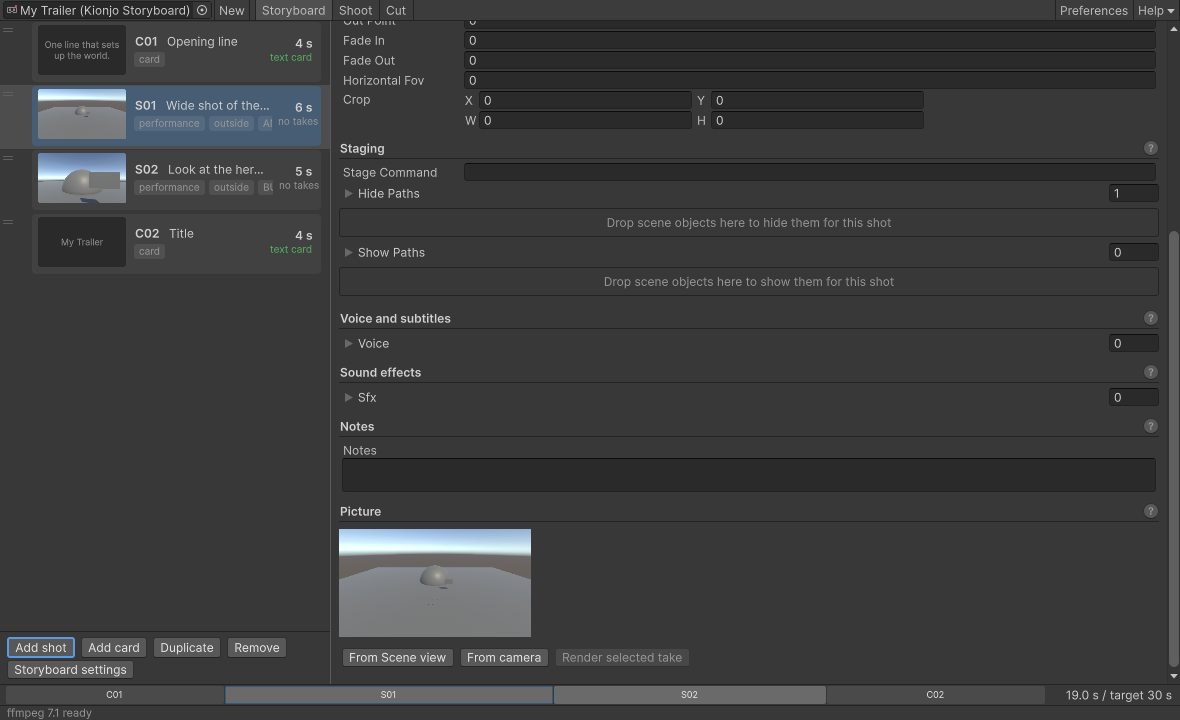
Picture
The shot's thumbnail. It shows on the card, it is what the animatic shows, and it is the frame of a Still shot. Not shown for cards.
- Automatic: a new shot takes its picture from the Scene view camera when you press Add shot.
- From Scene view: frame the shot in the Scene view, then press it.
- From camera: grabs one frame from the Kionjo Camera Source, else the camera tagged MainCamera.
- Drop an image: drag a PNG or JPG onto the picture.
- After a render: the picture is replaced by the render's middle frame.
- Render selected take (Performance or Live Camera with Offline Render): replays the selected take and renders it at the storyboard's render preset. Needs Play mode. When it is disabled, its tooltip says why.
Pictures are PNG files in Kionjo/thumbs/, named by the shot's id. They are never imported as assets.
Shoot tab
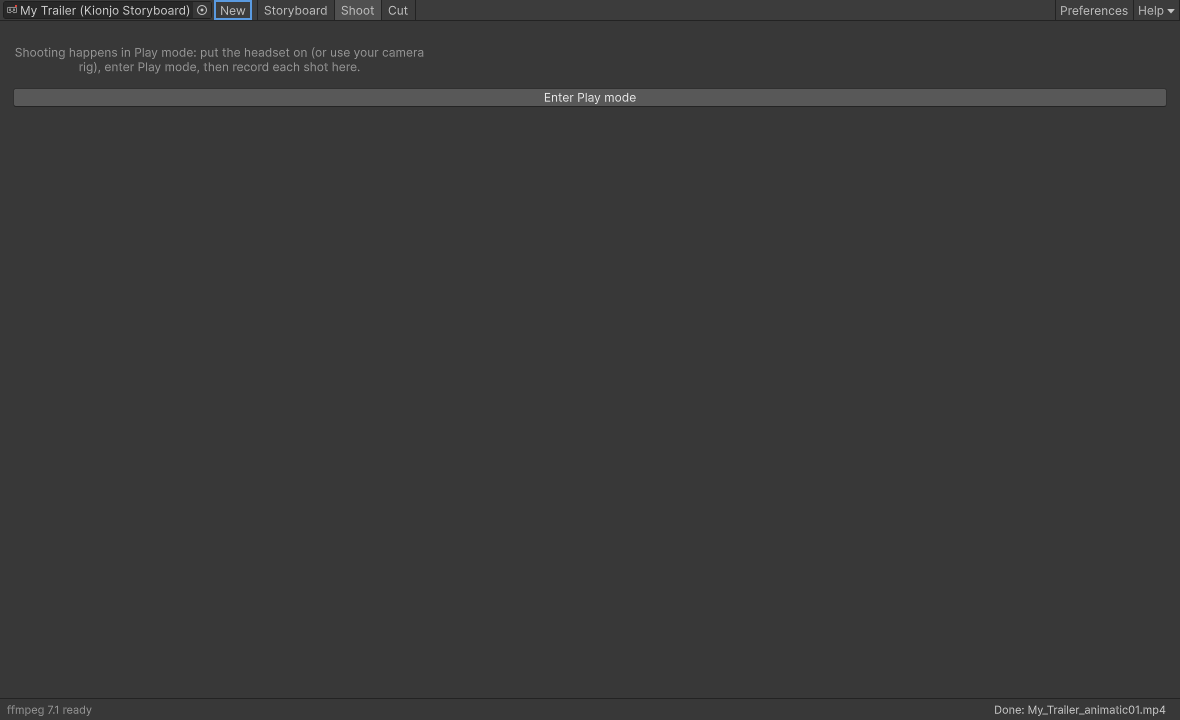
Stage, record and replay takes, one shot at a time. Recording needs Play mode.
Outside Play mode
- Enter Play mode: starts Play mode so you can record.
- Add a Kionjo Recorder (head = main camera): shown when the scene has no recorder. Adds one to the main camera's top parent, with the camera as the Head track. Add your hands as more tracks.
In Play mode
- Header: the shot's code and name, its type, planned length and location.
- Stage: applies the hide and show lists, runs your stage handlers, then checks the scene.
- Check: checks the scene against this shot without changing it.
- Ready / Not ready: the result. Each line below it is marked x (error), ! (warning) or i (information). Any error means Not ready.
- Record (Space) / Stop (Space): starts and stops a take. Red while recording, with the elapsed time and the cap. A take stops by itself at the recorder's Max Take Seconds (120 by default).
- Takes: each take with its length and event count. Use picks it for renders and the cut. Replay plays it back in the scene (unplug the headset first). Show opens its folder. Delete removes it from disk after a confirmation.
- Done, next shot (N): moves to the next shot that is not a card.
The checks: every hide path found and inactive, every show path found and active, a camera, a Kionjo Recorder with tracks, and no XR device active when replaying or rendering. An empty hide and show list is reported as information.
Space and N work only while the Kionjo window has focus, the Shoot tab is open and you are not typing in a field.
Cut tab
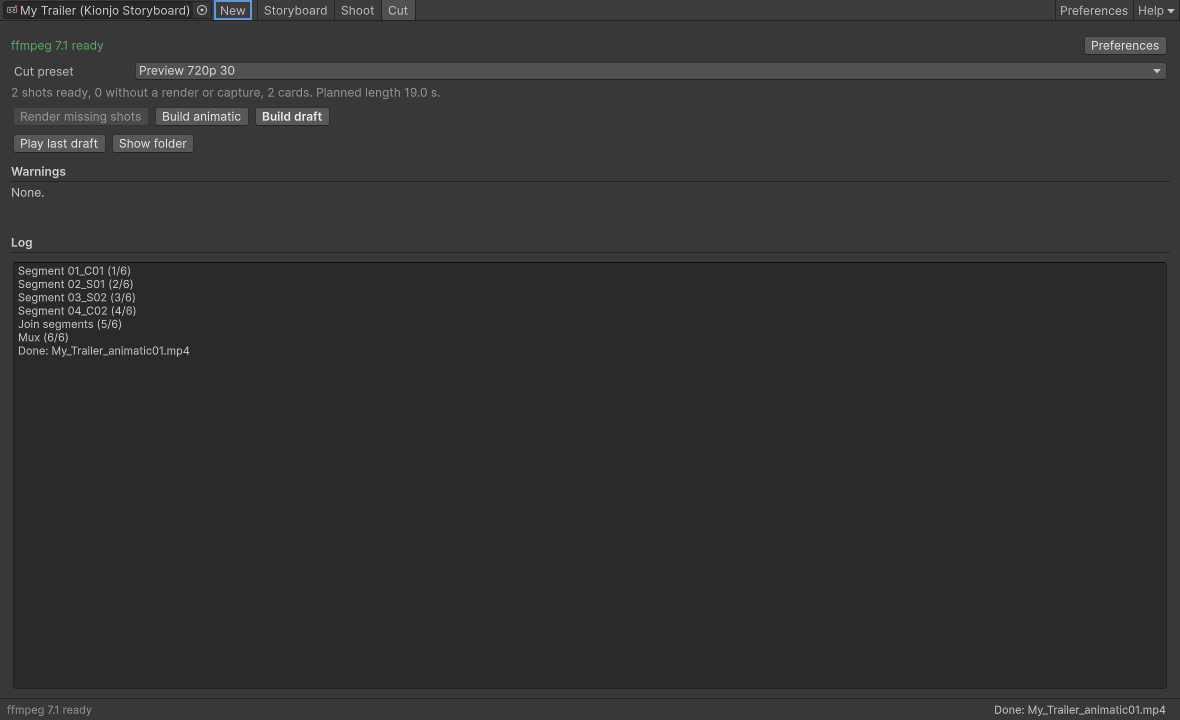
Render what is missing, then assemble a draft or an animatic with ffmpeg.
- ffmpeg line and Preferences: which ffmpeg will run, and a shortcut to change it.
- Cut Preset: frame size and quality of the assembled draft.
- Summary: shots ready, shots without a render or capture, cards, and the planned length.
- Render missing shots: renders the selected take of every shot missing a render, one after another. Needs Play mode.
- Build animatic: every shot as its picture (or a title card) for its planned length, with voice, subtitles and music. See animatic.
- Build draft: assembles the next numbered draft: MP4, SRT, XML timeline and
commands.txt. - Play last draft and Show folder: open the last draft, or its folder.
- Warnings: shots left out and cues dropped by the last build, with the reason.
- Log: the log of the last job, with the end of ffmpeg's error output when a step fails.
A disabled button says why in its tooltip: ffmpeg not found, a job is running, not in Play mode, or nothing to cut yet.
Status bar
- ffmpeg status: the version and path Kionjo found. When ffmpeg is missing it turns to a warning: click it to open Preferences.
- Job: what is running (a render, a cut, an animatic) and how far, for example the frame a render is on, plus how many jobs are queued. A failed job shows here; hover it for the error.
- Progress bar and Cancel: Cancel stops the running job and any queued renders.
Kionjo runs one job at a time. Renders queue behind each other.
Preferences > Kionjo
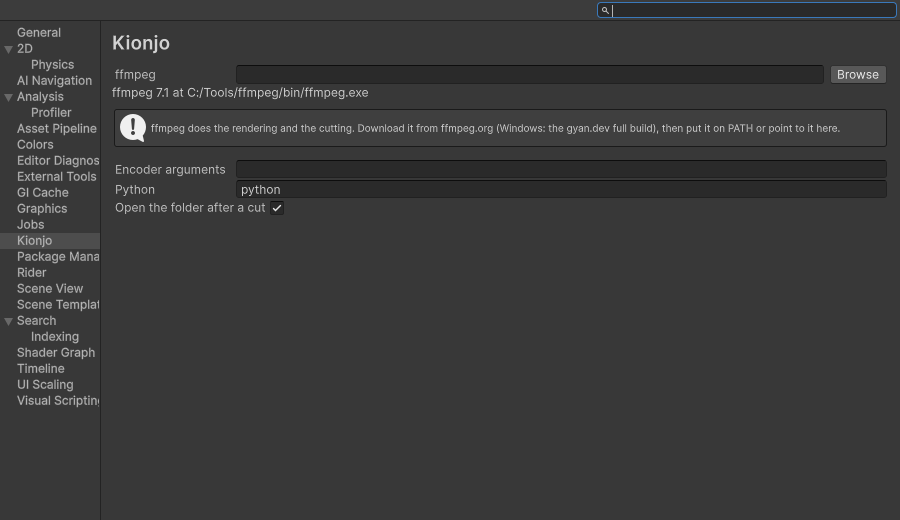
Per user settings, stored on your machine, not in the project. Open them from Edit > Preferences > Kionjo, the toolbar's Preferences button, or the status bar.
- ffmpeg and Browse: the ffmpeg file or its folder. Empty searches PATH. The line below shows what was found. ffprobe is looked for next to it.
- Encoder arguments: replaces the preset's encoder, for example
-c:v h264_nvenc -cq 19 -preset p6. Empty uses the preset (libx264). - Python: Python with faster-whisper, used to trim voice lines to words. Optional. Default
python. - Open the folder after a cut: reveals the new draft in Explorer or Finder when a cut finishes. On by default.
Components
Add them from Add Component > SeedeXR.
Kionjo Recorder
Records any set of Transforms plus Kionjo events into a take folder. Works with any rig.
- Tracks: each has a Name (the replayer binds tracks by name), a Target Transform, and Record Scale (also record local scale, 12 bytes per frame). Name the head track
Headso renders follow it. - Max Take Seconds: a take stops by itself after this long and marks the event
cap. 120 by default. ToggleTake(): call it from your own controller button to start and stop a take of the shot selected in the Shoot tab.
It samples late in the frame, after your rig has written its poses, and streams to disk as it goes, so memory stays flat.
Kionjo Camera Source
Tells Kionjo which camera renders the trailer. Without one, Kionjo uses the camera tagged MainCamera.
- Camera: the camera to render through. Empty uses the Camera on the same GameObject.
- On Recording Started, On Recording Stopped, On Render Started, On Render Stopped: events, so your own camera logic (a Cinemachine shot, a scripted move) starts with a take or a render.
Kionjo Replayer
Plays a take back onto Transforms. Optional: when the scene has none, Kionjo makes a temporary one bound to the recorder's tracks. Add your own to listen to events.
- Tracks: Transforms to drive, bound to the take's tracks by name.
- Head Track Name:
Headby default. Head Override: a Transform that receives the head track instead (a render camera). - Smoothing Seconds (0.1) and Roll Lock (on): centred smoothing of the head, and head tilt removed. A render sets these itself.
- Lock Frame Rate and Fps: advance time by exactly 1 / fps per frame.
- On Event: raised with the name and payload of each recorded event, so your game can show the matching UI state. Kionjo never presses anything.
Kionjo Event Relay
A UnityEvent target with a fixed Event Name. Call its Mark method from a Button's On Click to record the moment without code.
What goes where
Everything heavy lives outside Assets, under the storyboard's output folder: by default Kionjo/ in the project folder. Add it to .gitignore.
| Folder | Contents |
|---|---|
takes/S07/S07_take03/ | take.json (tracks, events) and frames.bin (poses, about 1 MB for 2 minutes) |
renders/S07/ | S07_take03_HD1080p60.mp4 and a .json sidecar |
captures/S07/ | Imported headset captures, and captures/index.md |
thumbs/ | Shot pictures |
cut/draft03/ | The draft MP4, subs.srt, a Premiere / Resolve XML timeline, commands.txt (re-run the cut by hand), cut.log |
animatic/animatic01/ | The storyboard as pictures, timed, with voice and music |
state.json | What Kionjo is doing now, for scripts and agents |
A render first writes <name>.partial.mp4 and replaces the final file only when it succeeds, so a cancelled re-render keeps your last good render.
Extending
All in the SeedeXR.Kionjo namespace. Kionjo finds implementations on MonoBehaviours in the loaded scenes.
IKionjoStageHandler:IEnumerator Stage(string shotId, string stageCommand). Set the scene up for a shot: jump the story to a beat, open a panel. Handlers run one after another and Kionjo waits for each.IKionjoRecordingHook:OnKionjoRecordingStarted(string takeFolder)andOnKionjoRecordingStopped(string takeFolder). Start your own capture (a device recorder, a replay buffer) together with a take.KionjoEvents.Mark(string name, string payload = null): record a game moment. Costs nothing when nobody listens.KionjoReplayer.onEvent(UnityEvent) andEventFired(C# event): turn recorded moments back into UI states on replay.IKionjoFrameSink: take the raw RGBA frames somewhere else (a PNG writer, a different encoder):Begin,Push,End,Error.
using SeedeXR.Kionjo;
using UnityEngine;

public class StartDeviceCapture : MonoBehaviour, IKionjoRecordingHook
{
    public void OnKionjoRecordingStarted(string takeFolder) { /* start recording */ }
    public void OnKionjoRecordingStopped(string takeFolder) { /* stop recording */ }
}