

Getting started
From an empty window to your first draft
Six steps. The Quick Start sample lets you do all of them without a headset.
Step 1
Install Kionjo and ffmpeg
- Open Window > Package Manager, choose + > Add package from git URL and paste
https://github.com/SeedeXR/kionjo.git. Add#v0.1.0to the end to pin a version. - Install ffmpeg. On Windows, the gyan.dev "full" build has everything Kionjo uses. Put it on PATH, or remember where it is.
- Open Window > Kionjo. The status bar at the bottom says which ffmpeg it found, for example "ffmpeg 7.1 at C:\...".
- If it says "ffmpeg not found: click to set its path", click it. That opens Preferences > Kionjo, where you can browse to ffmpeg.
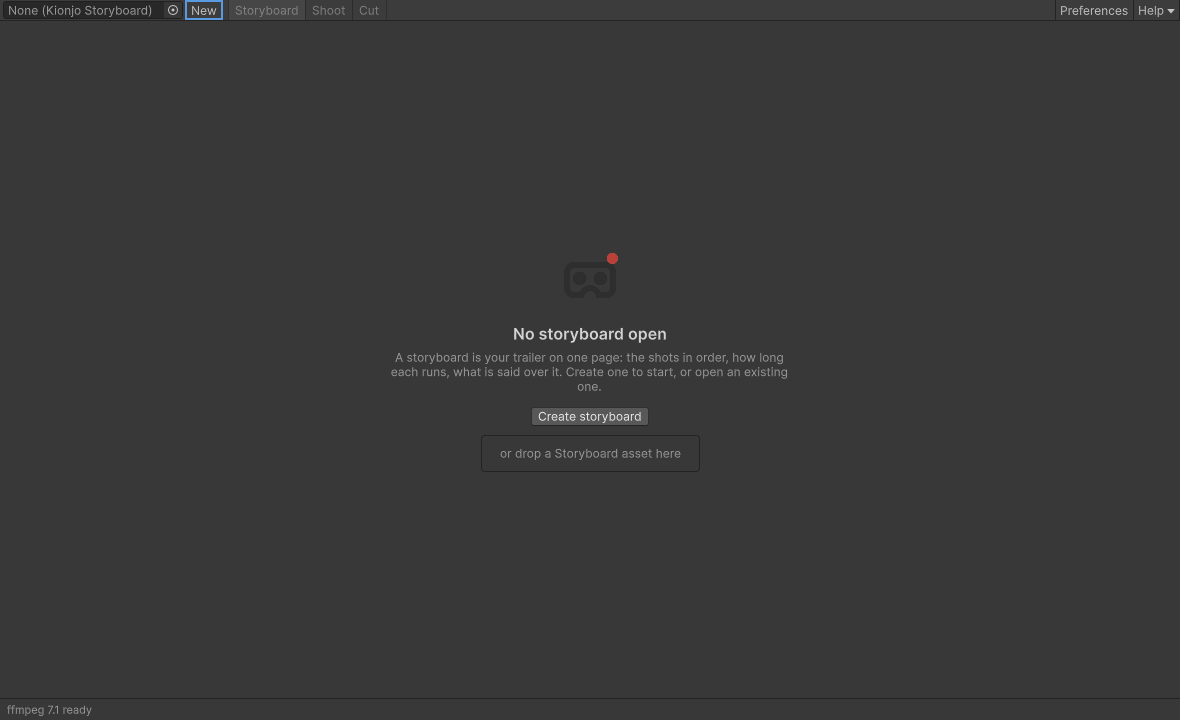
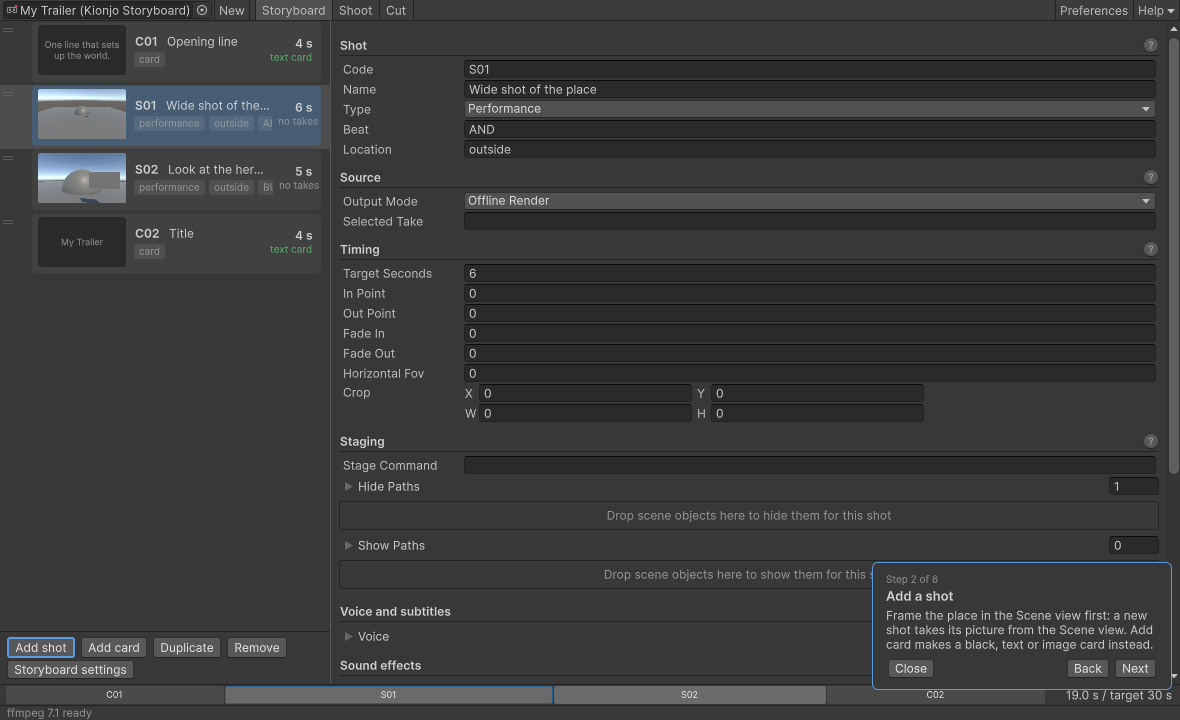
The first time you open the window, a short guided tour walks you through it. It highlights each part as it talks about it: create a storyboard, add a shot, fill in the shot, the picture, shoot, cut. Use Next, Back or Close. It shows once. Open it again from Help > Guided tour.
Step 2
Try the Quick Start sample
The sample is a small scene with a stand in rig, so you can record, render and cut without a headset.
- In Package Manager, select Kionjo, open Samples and import Quick Start.
- Run Tools > Kionjo > Build Quick Start Scene. It makes a scene with a head camera and two hand cubes, moved by
KionjoSampleRigMover, which plays the person in the headset. It also makes an example storyboard called "My Trailer" and opens the Kionjo window on it. - Enter Play mode. In the Shoot tab, select "Wide shot of the place" and press Stage. The debug panel hides.
- Press Space to start a take, and Space again to stop it.
- In the Storyboard tab, press Render selected take. The status bar counts the frames.
- In the Cut tab, press Build draft. The draft folder opens with the MP4, the SRT, a Premiere XML timeline and
commands.txt.
Step 3
Plan a storyboard
A storyboard is your trailer on one page: the shots in order, how long each runs, and what is said over it. It is an asset in Assets/. Everything heavy it produces lives outside Assets/.
- Press Create storyboard (or New in the toolbar) and choose where the asset goes.
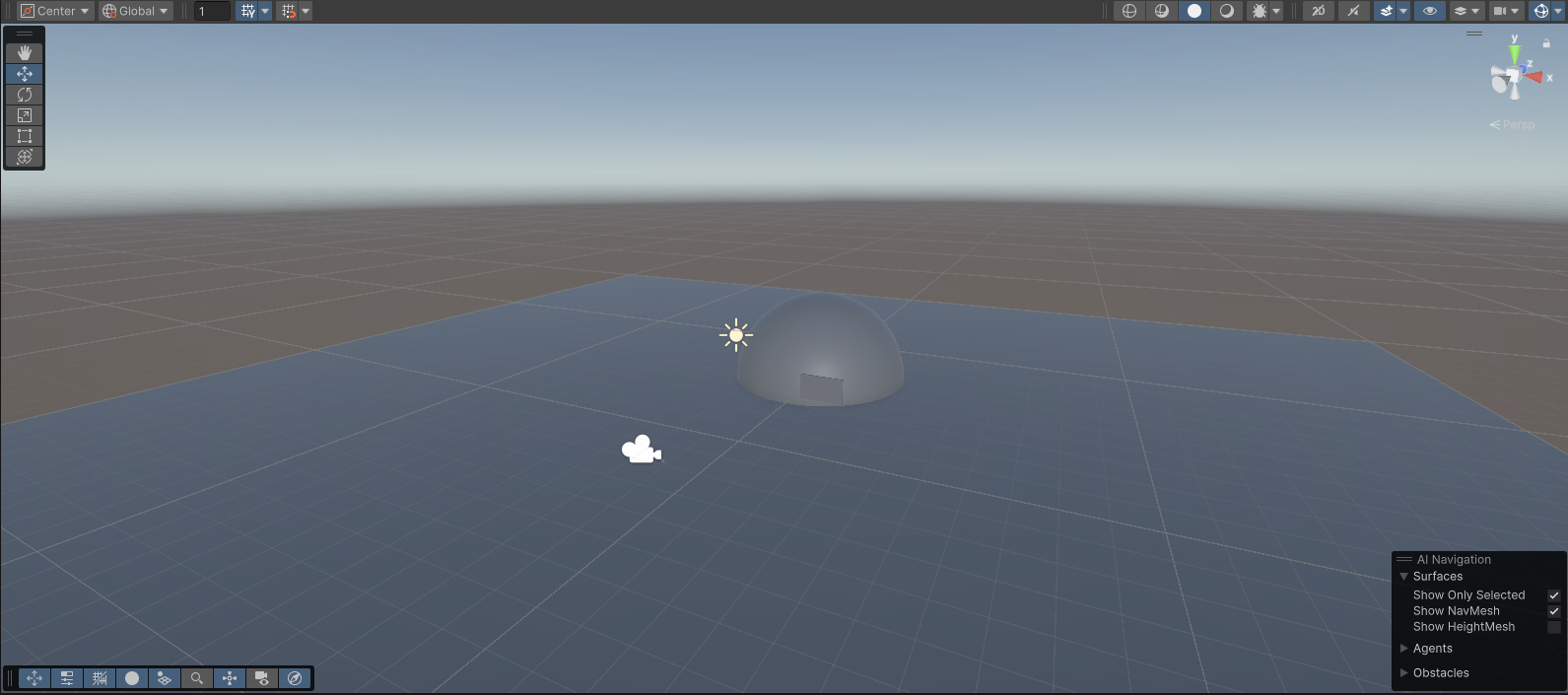
- Frame the place of your first shot in the Scene view, then press Add shot. The new shot takes its picture from the Scene view camera.
- Fill in the shot: a Code such as S01 (used in folder names), a Name, the story Beat, the Location, and its planned length in Target Seconds.
- Under Voice and subtitles, add the line that plays over the shot and its subtitle.
- Press Add card for an opening line, closing lines or the cover. Cards are black, text or image.
- Drag the cards in the list to reorder them. The timeline bar at the bottom shows the running length against your target.
- Add a recorder to your rig: Add Component > SeedeXR > Kionjo Recorder. Add a track for the head camera and name it
Head. Add one track per hand. Any Transform works.
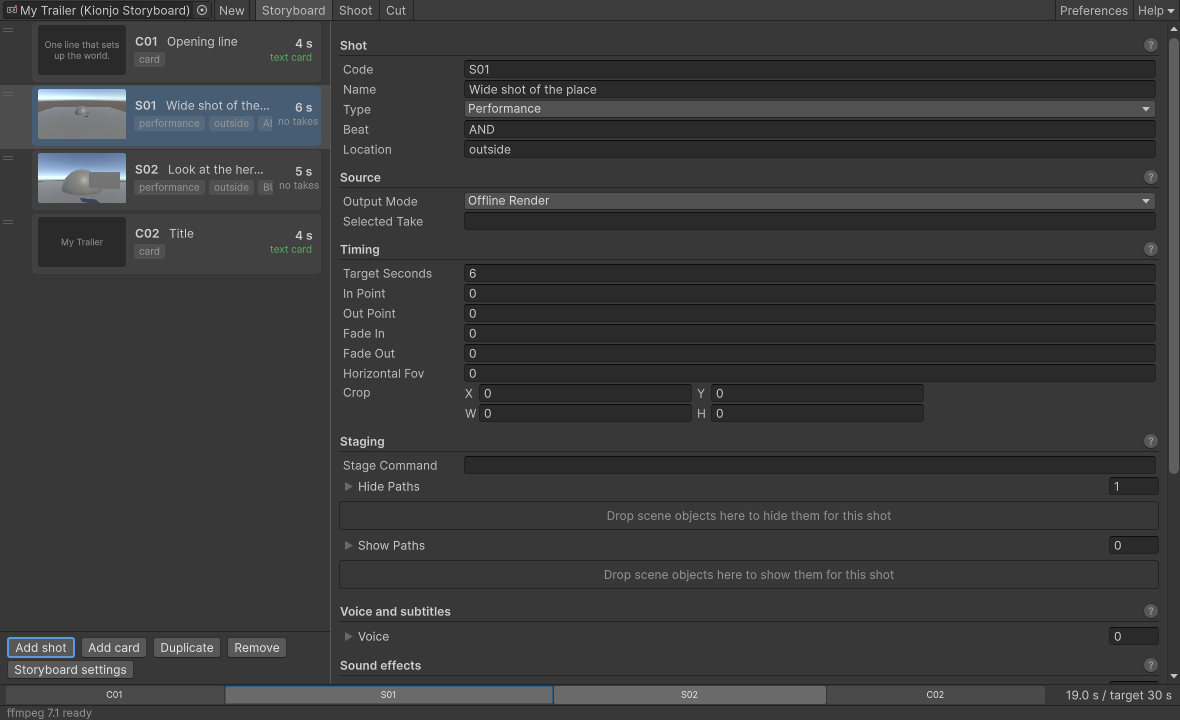
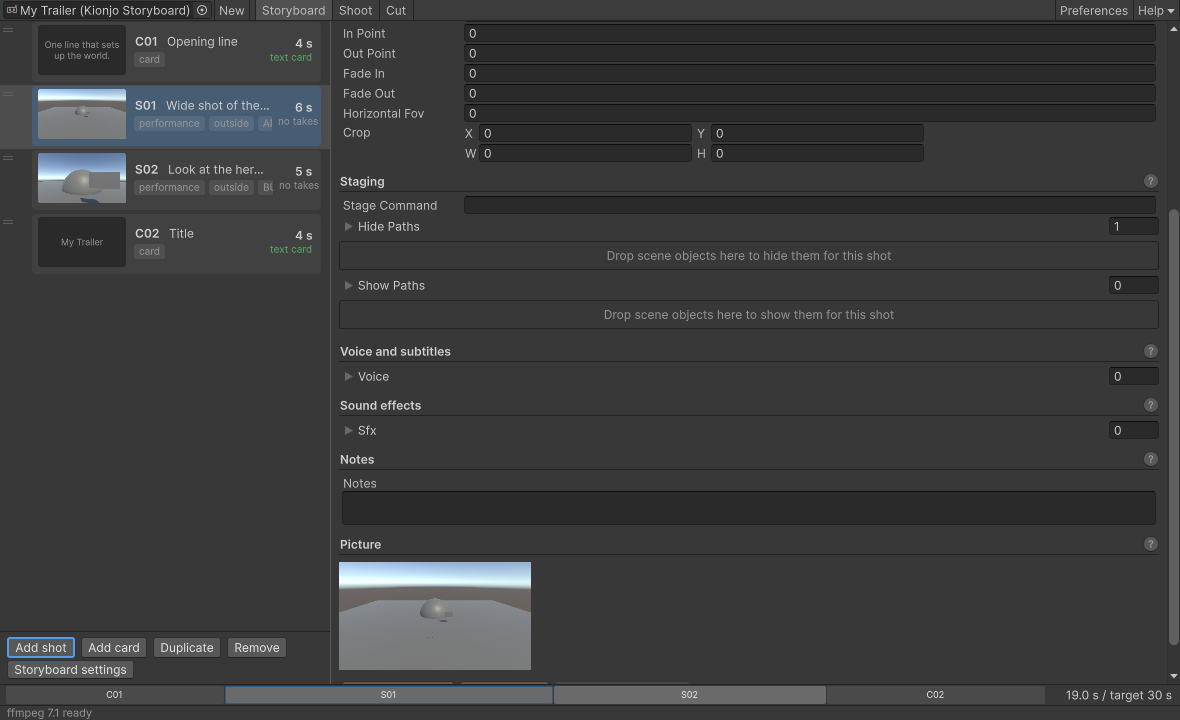
Every field has a tooltip. For what each one does, see the shot inspector reference.
Step 4
Shoot a take
Shooting happens in Play mode. With a headset, run it over Link or Air Link.
- Put the headset on and enter Play mode. Open the Shoot tab. The selected shot is shown at the top.
- Press Stage. Kionjo applies the shot's hide and show lists, runs your stage handlers, then checks the scene. You get a Ready or Not ready badge with the reasons.
- With the Kionjo window focused, press Space to start a take. Perform the shot. Press Space again to stop.
- The take appears in the list, for example
S01_take01, with its length and event count. Press Use on the take you want in the cut. - Press Done, next shot (N) to move on.
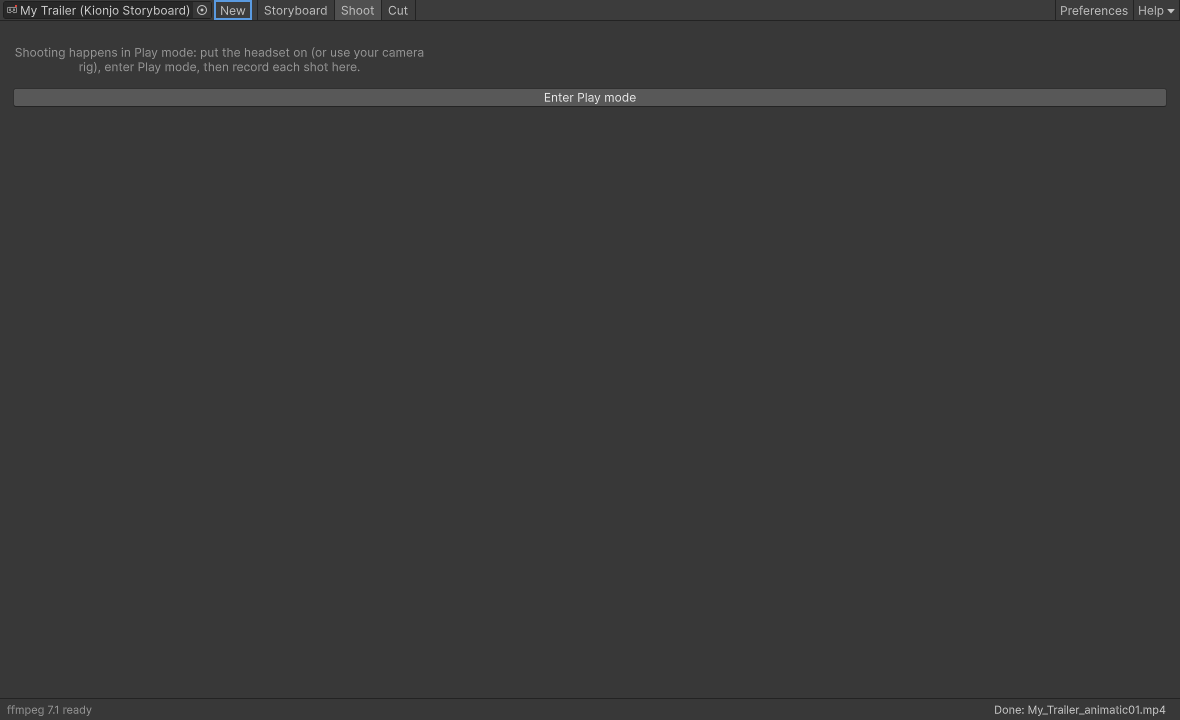
KionjoRecorder.ToggleTake() from a controller button.Step 5
Render the take
- Take the headset off and stop Link. Stay in Play mode: Kionjo renders only in Play mode.
- Optional: press Replay on the take. The Game view moves the way your head did.
- In the Storyboard tab, select the shot and press Render selected take in its Picture section. Or, in the Cut tab, press Render missing shots to queue every shot that is missing a render.
- The status bar shows "frame N of M" and a progress bar. Cancel stops it.
- The render lands in
Kionjo/renders/S01/S01_take01_Preview720p30.mp4, and the shot's picture becomes the render's middle frame.
Renders use the storyboard's Render Preset. The default is a fast 720p preview. Switch to HD or 4K in the storyboard settings when the cut is right.
Step 6
Cut a draft
- Open the Cut tab. The top line shows the ffmpeg Kionjo will use, and a summary counts shots ready, shots missing a source, and cards.
- Press Build draft. Each draft gets its own numbered folder:
Kionjo/cut/draft01/, thendraft02, and so on. - When it finishes, the folder opens. Press Play last draft to watch it.
- Read the Warnings list. It names shots left out and cues dropped, with the reason.
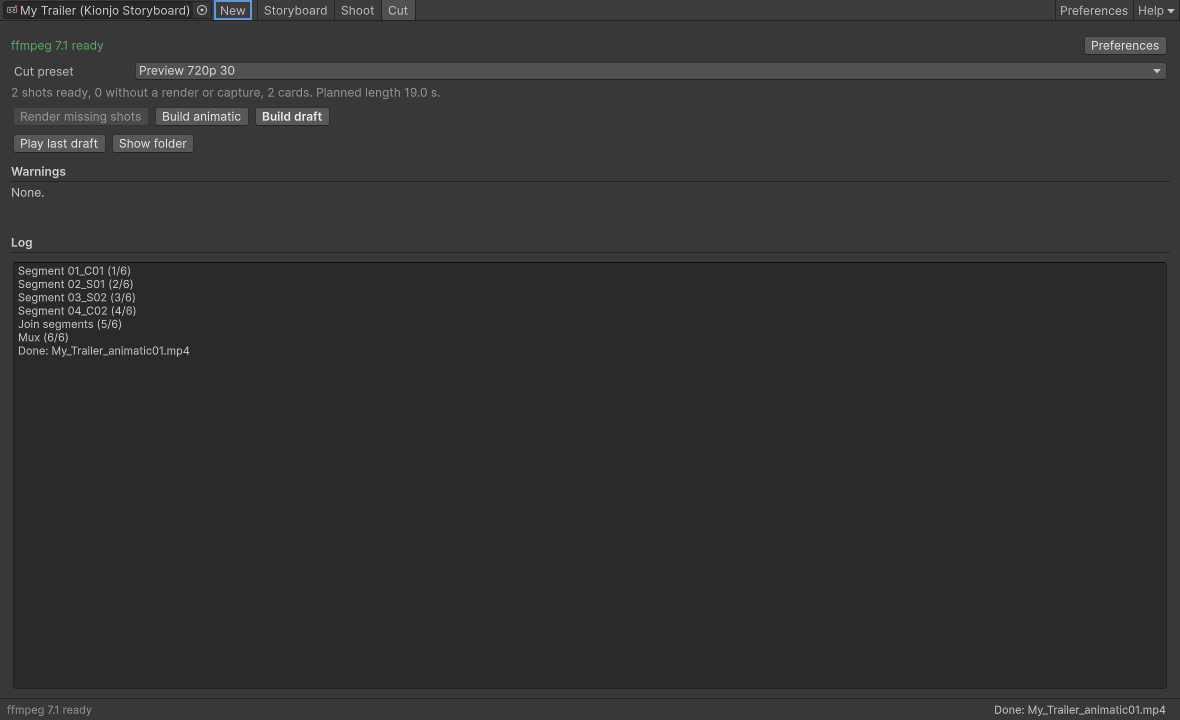
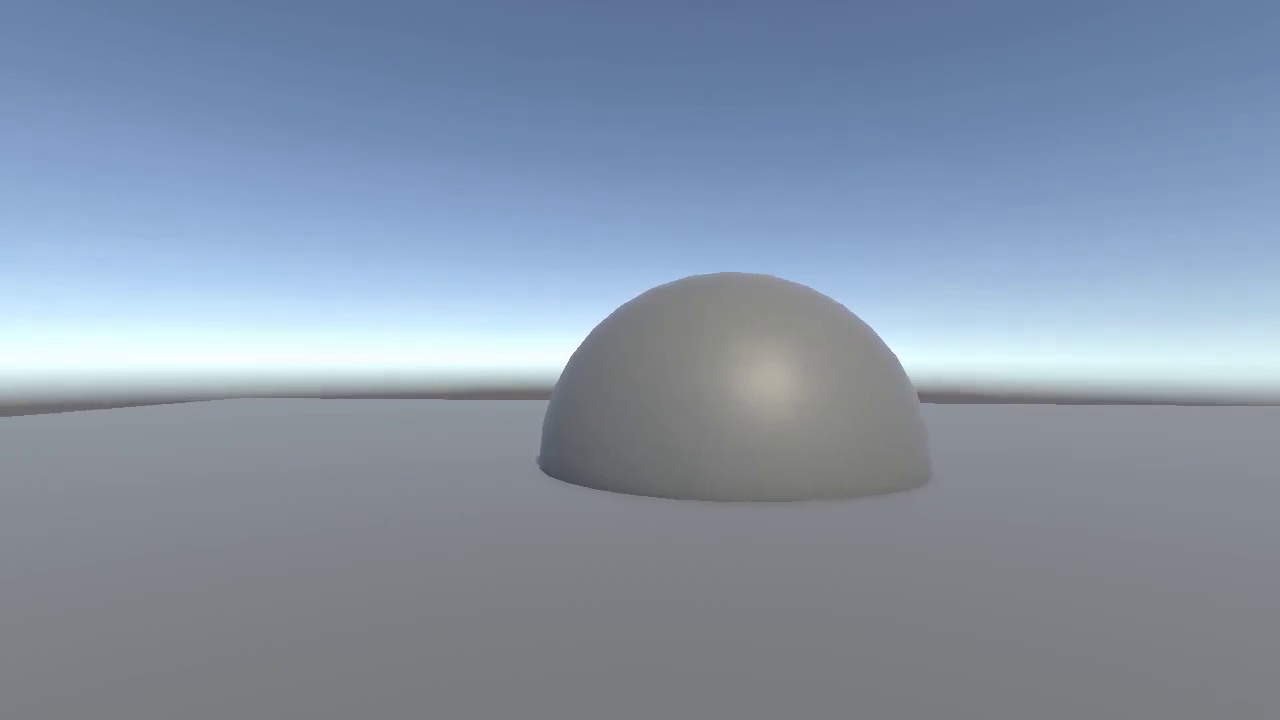
The draft folder holds the MP4, subs.srt, an XML timeline for Premiere Pro or DaVinci Resolve, commands.txt (re-runs the cut by hand) and cut.log. See what goes where.
Next: pick your case in I want to...